Social Icons

Showing posts with label Windows 8. Show all posts

Thursday, 10 April 2014

System Restore in Windows 8, 8.1, Enabling The Feature

What is System Restore?
System Restore is a program available in all variants of Windows 8. This program automatically creates restore points containing the present state of the computer at that time. System Restore returns your computer to the state from the restore point. You can also create a restore point by yourself. It will also provide a feature of undo the system restore if it will not resolve your problem.

How to Enable this Feature?
Go to Start Screen and type Restore point and click on "Create a Restore Point"
Screenshot 1:-  


System Properties window will pop up.

Screenshot 2:-


Select Your Drive and Press Configure 

Check the button against "Turn on System Protection" and then Press "Ok"

Screenshot 3:-


This Process will automatically create restore points at regular intervals of time.

Now if you want to Restore your system from a particular Restore Point, Click on "System Restore" from system properties window.

Screenshot 4:-


"System Restore" window will be popped up, then click "Next", then Click the restore point you want to use from the given list and press "Finish"
Clicking finish will restore your system to a previous stage when this restore point is created. Your system will be restarted after the process completes.

Read more

Monday, 17 March 2014

Run Control Panel Items With Useful Run Commands

Every computer user might want some shortcuts to run some basic windows applications or utilities to simplify his/her task. So, Here are some of the useful run commands from those you can access control panel items very easily without using graphical interface:-

run-dialog-box
Run Dialog Box


Backup and Restore    =======     sdclt.exe
Bluetooth Menu           =======     bthprops.cpl
Color Management      =======     colorcpl.exe
Device Manager          =======     devmgmt.msc
Disk Management        =======     diskmgmt.msc
Date and Time             =======     timedate.cpl
Screen Resolution       =======      desk.cpl
Use the PC without-
Mouse or Keyboard     =======     control keyboard or control mouse
Internet Options          =======     inetcpl.cpl
Fonts                            =======      control fonts
Network Connections =======     ncpa.cpl
Pen and Touch             =======     tabletpc.cpl
Sound                           =======      mmsys.cpl
Task Scheduler           =======      taskschd.msc
Volume                        =======      SndVol.exe
Firewall                       =======      firewall.cpl
User Accounts            =======      control userpasswords
Power Options           =======       powercfg.cpl
Computer Defaults    =======       computerdefaults.exe
Read more

Saturday, 8 March 2014

Alter Your Boot Configuration Data (Windows 8)

Before we start let us make a short description on what BCD is. Boot Configuration Data is shortened as BCD, it is like the database containing the information about boot setings, MBR (Master Boot Record) and other required data to load the windows. 
The bootsector loads the windows Boot Manager, accesses the boot configuration data store and uses that information to load the operating system successfully. It is a firmware independent database for boot time configuration data. It is used by new Windows Boot Manager and replaces the "boot.ini" that was used by NTLDR.

Functions that bcdedit can perform:-
=> Change the default boot settings having multiple operating systems (Multi Boot Systems).
=> Timeout Adjustments
=> Change the descriptions of boot menu items

To start BCD Editing, go to start screen by pressing windows key and type "Powershell" and right click on Windows Powershell and click on "Run as Administrator". Make sure to start it as Administrator as you are going to edit the system's Bootloader which demands administrator privileges.
Before you make some sought of settings to windows bootloader, make sure to take the backup of current settings.
Backup command- "bcdedit /export E:\bcdbackup" 
E:\ is the path where backup is created and bcdbackup is the name of the backup file.
Output:- 
  
bcd-backup
Backup Operation of BCD

Now, after the powershell window opened, type bcdedit and press enter. Out Shown Below:-

bcdedit-basic-settings
Windows Powershell
BCDs common commands:-
Timeout:- This command is used to change the default timeout duration to user defined time value. Like if system is on dual boot and want to chose the OS which user wants to start, so he's got 10 Seconds or 30 Seconds to opt for the one.
Syntax:- bcdedit -timeout 20
Output- 

timeout
Changing Timeout Value to 20 Seconds
DisplayOrder:- This command is used when you have installed more than one operating system installed on your computer. This helps to change the order in which the operating systems got listed by default. 
Syntax:- bcdedit -displayorder {current} {OS 2}
Output:- I'm currently using only single OS, so, the users using more than one OS got more than one result listed against displayorder option in the following command. Using the value against displayorder you can switch over the OSes. 

display-order
Display Order
Note:- It may be dangerous to edit your bootloader's settings, so make sure you have a backup of your current settings. If you failed to successfully edit the settings and crashed the bootloader, then just boot from windows 8 DVD and click on "Repair your computer" => Advanced Options => Command Prompt => Go to C:\ Prompt by entering the command cd\ 
After that enter the command to recover the damaged bootloader:-
BootRec /RebuildBcd. That's it You Repaired your bootloader successfully.
Read more

Friday, 7 March 2014

Turning Off Smart Screen Filter In Windows 8

Smart Screen Filter is deployed in windows 8 for protecting its users to get phished or from visiting dangerous websites that are injected with malware. 

Windows Smart Screen Filter Warning User From Using an Unrecognized Program
Whenever a user tries to open a unhealthy website from security point of view, he'll get the above message shown in screenshot by the Windows Smart Screen Filter, generating a warning message to let the user knew about the malicious site.
Some folks thinks that this smart screen filter  fetches the information from your system e.g. which applications are installed in the system and login credentials stored in them. So, tries to switch it off permanently but always remember you are slashing your security measures that are provided by the Operating System by default.


Read more

Sunday, 2 March 2014

Boost Windows 8 Start Up By Halting Startup Programs And Unsolicited Services

There are plenty of unknown programs and services that are started immediately after windows is booted. These services run in background to perform some unsolicited tasks in the system from which the user is unaware. So, one of the best ways to boost the start-up of your system is to force stop unnecessary programs and services from running whenever your personal computer starts.

1. Dumping off the content of StartUp Folder:- Your Startup programs are stored in the following directory:-"C:\Users\<UserName>\AppData\Roaming\Microsoft\Windows\Start Menu\Programs\Startup" . Delete the unnecessary shortcuts of programs that you don't use and don't want them to run  on startup and makes your system a bulky one.

2. Task Manager:- The best tool to disable hidden programs is the Task Manager's "Startup" tab. Simply press "CTRL+ALT+DEL" or "CTRL+ALT+ESC"  to start task manager and switch to start up tab. There's a list of all the programs that are allowed to run at startup without asking for the Administrator's permission. This tool is exceptionally powerful to decide which of the following programs have to be started on boot or which of them are not. 


[Like the programs circled are with low priority and not for any use should be killed.]

3. Services.msc:- These services launch at startup automatically, processes that help operating system run or that provide support to applications running at back-end. 


The service you want to turn off to run on start up, right click on that task and click on properties then open the drop down list against "Startup type" and then select "disabled".  

4. Fast StartUp :- Windows 8 features a new mode called "Fast StartUp" mode that helps your system to start much more quickly than before. How to enable this feature:- Press "Windows key" and then type "Power Options" and press enter. Now on the left pane of the Power Options window, click on "Chose What Power Buttons Do" and then check the box against "Turn On Fast Startup (recommended)". 


Note:- This feature only works when your pc is started after a Shutdown, it wont work if system is restarted as both are different things. 

Hope this helps you to make your system boot faster without purchasing extra RAMs or High Speed Processors. 


Read more

Friday, 14 February 2014

Boot Directly To Desktop In Windows 8

Hello Readers, As Microsoft's new Operating System "Windows 8" boots up to the Start Screen by default, it is little bit uncomfortable for the users who are using it first time. But it also provides an option to directly boot into Desktop. So let's begin with the Tut to Boot onto Desktop instead of Start Screen.


Follow the simple steps to enable boot to desktop in Windows 8:-
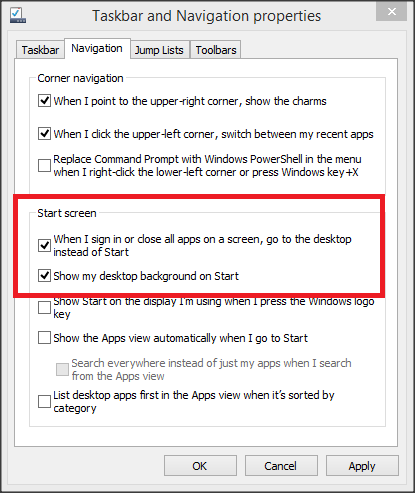
  1. Right Click on Taskbar and Select Properties
   
    2. Move to "Navigation" tab


  3. Under the "Start Screen" sub menu, Check  "Go to the Desktop instead of Start" and if you Want the Same background to your Start Screen as of Desktop then, Select "Show my Desktop Background on Start"


Windows 8 is coming with more user friendly interface and will be getting more updates this spring season. [Rumored] 
Read more
 
 
//SEO SCRIPT By - Techbymak.com